How to Check If a PNG Is Really Transparent, and Fix a Fake One
To check if a PNG is really transparent, drop it on a colored background: a real transparent PNG shows that color through, and a fake one keeps a white, black or checkerboard box. A fake transparent PNG is an image whose gray and white checkerboard was painted into the pixels, so the squares show up everywhere the image is placed. To fix it, cut the subject out and save a real transparent PNG.
- Put the image on a colored backgroundPlace the file on a colored slide or page. A real transparent PNG shows the color through its empty areas. A fake one shows a gray and white checkerboard box.
- Zoom in and outA real checkerboard in an editor keeps its square size while the image scales. A fake one is part of the picture, so the squares grow and shrink with it.
- Check the file typeIf the file ends in .jpg or .jpeg, it cannot be transparent. JPEG has no alpha channel, so any checkerboard in it is painted pixels.
- Cut out the subject and save a real PNGAdd the image to the PNG background remover with Output set to Transparent PNG. The checkerboard is just background pixels, so it is removed with the rest of the background.
- Check the edgesOpen the result on a colored background. Where fine detail such as hair or lace sat on the checkerboard, use Touch up to erase leftover squares or restore lost edges.
What a real transparent PNG is
A real transparent PNG carries an extra value for every pixel, called alpha. The W3C PNG specification defines it this way: an alpha value of zero represents full transparency. A pixel with alpha zero is empty, and whatever sits behind the image shows through it. The format also stores truecolor images with an alpha channel as a standard option.
JPEG has no such value. As MDN's image format guide puts it, PNG is the fallback for any image needing transparency, as JPEG has no alpha channel. That one fact explains most fake transparent PNGs: a JPG was renamed or converted, and its pixels never carried transparency in the first place.
Why does my PNG have a checkered background?
A PNG shows a checkered background for one of two reasons. Either the editor you opened it in draws a gray and white checkerboard to mark transparent areas, which means the file is fine, or the checkerboard was saved into the pixels, which makes it a fake transparent PNG. The two look the same at first glance.
The first is harmless. Editors have to show emptiness somehow, so they draw a pattern behind transparent areas. Wikipedia notes that a suitable raster graphics editor shows transparency by a special pattern, such as a checkerboard. GIMP's documentation says it indicates transparency with a checkerboard by default and lets you change the colors and square size, and Krita's manual offers the same settings. In these cases the checkerboard is the editor's display. It is not part of the file, and it disappears when the image is placed on a page.
The second is the fake. Someone took a screenshot of an editor, or saved a preview with the pattern visible, or exported a flattened picture, and the squares became real pixels. These files turn up on image search pages and free PNG download pages, often with a .png label or a name that promises transparency. The checkerboard looks like a background to you, but to the computer it is just a picture of squares.
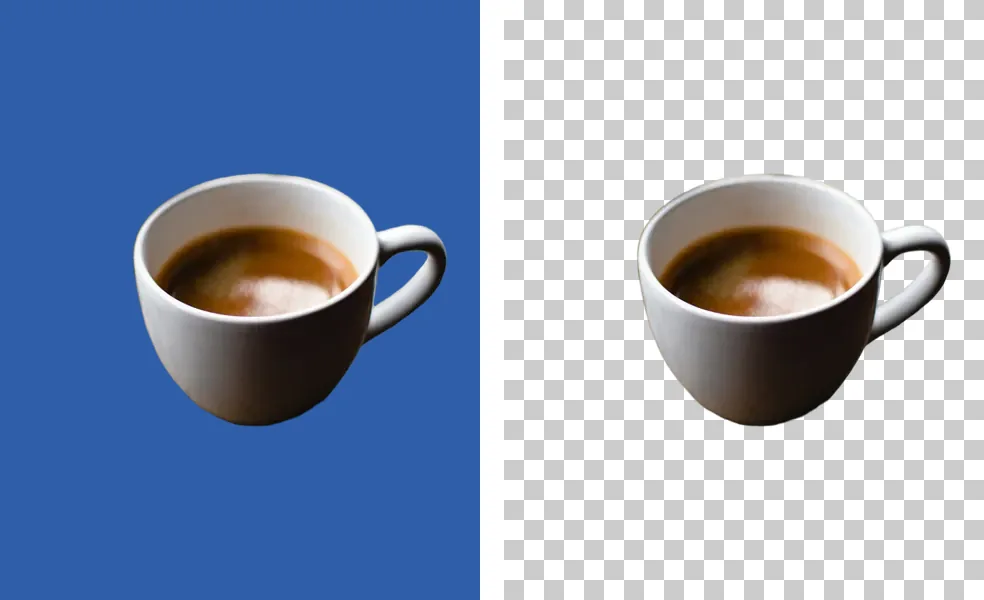
How can you tell a PNG is fake?
The quickest way to tell a PNG is fake is to place it on a colored background: if a gray and white checkerboard box stays around the subject, the squares are pixels and the file is not transparent. Three more checks need no special software either: where the checkerboard shows up, how it behaves when you zoom, and the file extension.
Look for the checkerboard where it should not be. A browser tab, a document or a messaging app normally shows transparent areas as white or as the page color. If you see squares in a search-result thumbnail or in one of those apps, they are pixels. Editors are the one place a real PNG is supposed to show them.
Place it on a colored background. This is the most reliable test. Drop the file onto a colored slide in PowerPoint or Google Slides, a colored frame in Figma, or a colored page in Word. A real transparent PNG lets the color through. A fake one arrives as a rectangle of gray and white squares with your subject in it. If a real PNG still shows a box on a slide, see PNG not transparent in PowerPoint, Word or Google Slides.
Zoom in and out. The squares an editor draws for transparency keep a fixed size on screen, because they belong to the editor. Squares baked into the file scale along with everything else, so they get larger as you zoom in.
Check the file extension. A .jpg or .jpeg file cannot be transparent at all, whatever it looks like on the download page. If the name says .png but the image looks soft or blocky around the edges, it may be a JPG that was only renamed, so check it on a colored background as well. Choosing a format for your own files? See JPG vs PNG for a transparent background.
| Check | Real transparent PNG | Fake transparent PNG |
|---|---|---|
| On a colored slide or page | The color shows around the subject | A gray and white checkerboard box stays |
| Zoom in and out | The editor's squares keep a fixed size | The squares grow and shrink with the image |
| In a thumbnail, browser tab or chat app | No checkerboard | Checkerboard visible |
| File extension | .png | Often .jpg or .jpeg, or a JPG renamed to .png |
Where can you find real transparent PNGs?
Searching for a "PNG" often returns the fakes, because the checkerboard in the thumbnail is what makes the result look transparent. Google offers a filter that helps. According to Google Search Help, the Color filter in Google Images lets you find images that are a certain color, black and white, or transparent. Run the image search, then pick Transparent under the Color filter.
The filter narrows the field, but run the colored-background test on any download before you build anything around it. For how the alpha channel behind these checks works, see what a transparent PNG is.
How do you fix a fake transparent PNG?
The checkerboard in a fake file is background, so it can be handled like any other background. Open the PNG background remover, add the image, and let the AI cut out the subject. Leave Output on Transparent PNG, which is the default. The squares go with the rest of the background, and the file you download has a real alpha channel.
Then check the edges. A busy two-tone pattern behind fine detail, such as hair, lace or fringe, is harder to separate than a plain background, so look at the result on a colored page before you use it. If squares are left or part of the subject was cut away, open Touch up (the pencil button) to erase leftovers and restore edges.
If you have a folder of fake files, the free plan takes up to 40 images per batch with no sign-up and no watermark. Photos are never uploaded. If the file is a plain white background rather than a checkerboard, why a PNG has a white background explains that case.
What to avoid
Do not try to select and delete the squares one color at a time. The pattern's gray and white also appear in many subjects, so a color selection can remove parts of the subject along with the squares. Renaming the file to .png or converting a JPG to PNG does not help either, because a converter copies the same pixels, checkerboard included. Cutting the subject out is what creates the transparency.
If you have fake transparent PNGs to clean up, the background remover is the quickest route to real ones.